Find info about electronics prices, discounts, top deals in link, like US below.
Showing posts with label Android. Show all posts

How to install android sdk ubuntu and windows


Actually I just wanted to give you a little tutorial or how to install android sdk on your pc or laptop with ubuntu os, but the same might as well install android sdk emulator on your computer or laptop pc with windows os like windows xp, windows 7, or Windows 8 as do almost the same and little disparate.

In android sdk we can use whatsapp application or WeChat on a computer with the help of this emulator android sdk installation, and if your computer is connected to the Internet then the android sdk emulator has been able to connect to the internet without any setting.
android sdk emulator ubuntu

* How to install android sdk emulator on ubuntu:


1. Install Java or OpenJDK on your ubuntu.

Open synaptic package manager or ubuntu software center and type "OpenJDK" without quotes then there will be available in accordance with the OpenJDK version of ubuntu 10.04 ubuntu instance it would appear OpenJDK 6 right-click and mark for install. Wait until the process is complete. To install openjdk-7 see here
In terminal :
#sudo apt-get install openjdk-6-jre

2. Download the Android SDK emulator here.

3. Extract the Android SDK has been downloaded into documents or anywhere up as needed :).

4. Open terminal by pressing CTRL + ALT + T or click Applications -> Accessories -> Terminal. Typing sudo su and enter your password.

5. Navigate your terminal to the android sdk folder. For example, if the Android SDK folder located in Documents then follow these steps:

  • cd Documents --> cd android-sdk-linux -- > cd tools --> ./android
  • So do not want typing like the above do as follows:

    - Open a terminal its way as the No. 4 typing "gedit ~ /. Bashrc" without the quotes and enter the text below at the very top and then save.
  • #AndroidDev PATH export PATH=${PATH}:/home/???/Documents/android-sdk-linux/tools export PATH=${PATH}:/home/???/Documents/android-sdk-linux/platform-tools
note:the name of the red "/ home /??? / Documents / android-sdk-linux / tools" and that the second is the folder where I store the android sdk. Adjust to the folder where you saved.- Still diteminal the following command "gedit / etc/udev/rules.d/51-android.rules" without quotes and input the text below ".

SUBSYSTEM=="usb", ATTRS{idVendor}=="0bb4", MODE="0666"

SUBSYSTEM=="usb", ATTRS{idVendor}=="0502", MODE="0666"

SUBSYSTEM=="usb", ATTRS{idVendor}=="12d1", MODE="0666"

SUBSYSTEM=="usb", ATTRS{idVendor}=="1004", MODE="0666"

SUBSYSTEM=="usb", ATTRS{idVendor}=="22b8", MODE="0666"

SUBSYSTEM=="usb", ATTRS{idVendor}=="04e8", MODE="0666"

SUBSYSTEM=="usb", ATTRS{idVendor}=="0fce", MODE="0666"

SUBSYSTEM=="usb", ATTRS{idVendor}=="0489", MODE="0666"

SUBSYSTEM=="usb", ATTRS{idVendor}=="18d1", SYMLINK+="android_adb", MODE="0666"

SUBSYSTEM=="usb", ATTRS{idVendor}=="04e8", MODE="0666", GROUP="plugdev"

To install the android sdk at the root can be viewed of the source ubuntu comunity here.

Then save and reboot or restart your laptop or computer. So that when you open the android sdk does not necessarily have to enter the android sdk folder on terminal. simply by opening a terminal and sudo password and then android sdk android in laptop or pc you'll leave.

6. Open a terminal and typing sudo ubuntu android then enter your password.

7. After the android SDK emulator appears and then select the check tools and android files that get installed like in the picture below.
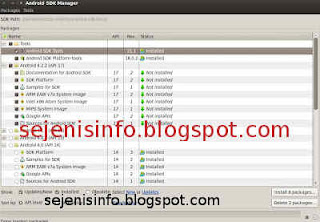
android avd emulator ubuntu

In the picture above I did install android 4.2 version and you can choose the version that will be installed android as android ICS, android honeycomb etc as you wish. At the bottom of the Extras folder with writing a check Android support libraries, Google play service, Google usb driver and so adjust it with the needs.

8. Click the install packages and licenses accept check, wait a while until installation is complete.

9. After install android sdk on PC or laptop is complete then click the Tools button located at the top left after the packages.

10. After the new window appears select the window or click the Manage button AVDS ... and click the New button on the right existing, well here you can choose your favorite android version there is a 10 inch size to a small size, select the size of the 7-inch or 5 inch that if the computer or laptop has a less specs computer so you are not too hang up or heavy and lag.

11. A new window will appear when the button is clicked and a new Insert your name free android for example name is androidku, android select your choice according to size preference. If you want to change the size of the internal memory replace it from 200 to 512 for example, and the contents of sd card to 1024 = 1GB and click OK.

12. If it is then in view avd there will be a new menu that has been created is androidku. Click start to open its android os android will appear according to your choice.

* To install the Android SDK on windows is the same way.


1. Download and Install the java application here.

2. Android Download for windows here.

3. Install android sdk on windows and if it is open android sdk installed and did his manner as above at the start of No. 7.

Video how to install android sdk emulator on pc or laptop


Posted by: Zein Okeh Share Everything, Updated at: Monday, May 06, 2013

How to hide file in android apps


There are some important files and folders in a gadget like android, laptops and mobile phones as well as several other gadgets, allowing others to access the confidential files or files that others should not know it could be used either intentionally or unintentionally. What more if we use android which is often used by others as a friend, brother, sister and others. For that we need to hide files and folders is as safe as possible so that important files such as music, song, video, and files and folders will be maintained and can not be found by others.

So the question now is, how to hide files in android?, Now it is in fact not a difficult thing to do because in google play alone there are some android apps to hide video files, songs and other files easily.

My choice to hide files application in android are two android applications use very easy and also free to be downloaded Adao file manager and  File hide expert.

How to hide files in android with Adao File manager:

1. Download and install Adao file manager. But this apk on google play is not available, can be found in several forums and others.

2. Besides could to hide file and foler in android, Adao file manager also can be used for the file manager as a tool to open the folder, data on android, if in windows, Adao file manager similar to Windows Explorer. Back up the application, task manager etc..

3. After installed, open Adao file manager application, select the SD card and select the data or files will be hidden by tapping the file until it comes out and sliding up the options menu so that the menu option Hide files visible. File hide option menu picture is at the bottom.
hide file di android

4. After the file menu Hide seen just click the options menu and any files that will be hidden will disappear from menu.

5. To restore files that have been hidden, Close Adao file manager or back by clicking the back button so Adao file manager located in the main menu. There are several menu options upward shift so posts will be hidden files visible. Click the Hidden files or writing for the first time we are given to create your own password, enter the password that will be made, after the password is created and has been entered into the Hidden files and files that are hidden will be there, click on the file to be restored to the original place of a single click or click longer.
restore file on android hide

How to hide files and folders in android with File Hide  Expert:


1. Download and install File Hide expert here.

2. Once installed open the app and to hide files such as video, song or music, pictures and also click the folder or picture folders that reside on the top right.
hide files on android
3. Select the folder or file that will be hidden by clicking the plus button on the right.
hide expert android files

4. Once files or folders are on the menu hide, click the hide button to hide all files or folders, these are available at the bottom left. And to restore the files and folders in hide just click the unhide all button or click the x button.
hide folder on android

5. Good luck.


Posted by: Zein Okeh Share Everything, Updated at: Wednesday, May 01, 2013

Screen capture for android with or without apps


Starting from the question in accusing me of someone who has the android phone "How do I capture picture on android?" Then I told screenshots android app? that same question with differend woords :) its kind that is a question when it was still new on using that android and not yet one week using android phone, in fact initially I also do not know how do it! :).

But since the Internet is now easier then I was open an internet in my room and searching in google, there are many applications that are in the google search, there could be no need to use the application and without root and there is also to make screen shot or screen capture applications need application and root. It still depends on the choice of you which is the best to use.

Also happened to be at that time I found a blog that I forgot to mention that blog and I'm sorry for him to posting back taht knowledge in my blog, way without the screenshot application on android i use samsung galaxy young. Ow much of a coincidence, is not really a coincidence everything is set up. The first I gave a screen capture images in a way that no android apps.

* How to Screenshot image without android application and without root on samsung galaxy Y GT S5360.


1. Take your phone and turn on:).
2. Screen is ready to be shot and then press a button on the center continues to press the back button on the the right once, the last push button on / of phone one and the picture will be soon in capture or in print to the screenshots folder.

screenshot image on android


3. To know the results open the gallery and see the screenshots folder there are the results.

* How to screenshot or capture an image in android with the application:

There are some screen shots android apk free or paid which are in google play we can choose according to our choice and according to your needs.

1. No Root Screenshot It, android screen capture application which is paid but its use does not need to root our android phone so it can be directly used.
2. Ultimate screenshots made ​​by Ice Cold Apps. Screen capture apps for android that there are two options one could with root and does not require root.
3. Screenshot by Kastor Soft, after I try and I read before installing android on phone we've had rooted. Though we can save the results of his capture to image JPG, BITMAP or PNG.
4. Screenshot Free By Wise Shark Software, this one I have not tried.

Posted by: Zein Okeh Share Everything, Updated at: Wednesday, April 24, 2013

Photoshop for android apk download


Photoshop is a tool or application to edit our pictures to make the picture better and more in line with what we would expect, is a tool that does what is necessary for us as a photographer, although not a photographer but an amateur using photoshop can make the picture better. Photoshop is a tool that can be used in computers can also be used on android however photoshop for android, photoshop version is slightly different from the computer, editing tools become more simple and simple alias, his name is Adobe photoshop express.

Adobe Photoshop Express is a tool or android apps to edit photos easily run you can feel yourself.
Photoshop for Android is easier to use after we install android into us, then we run the photoshop express, and will be out the photos of us who are in the camera folder.

photoshop express android

photoshop for android

Step how to edit photos in photoshop express android conducted in:

1. Install Photoshop express, can be opened in the google play here. Or you can download by search google.
2. Once installed run photoshop express on your android and then there will be found your photos that are in the camera folder in android.
3. Select an image to be edited by clicking on the photo.
4. After the selected photo and click open image such as stripes and click edit photos, can be seen an example in the image below:
edit photo with photoshop android
photoshop settings in android
5. Began to edit our photos in photoshop android, top right side we can see the button to edit photos, ranging from the right to the left side of the first to give a special effect given by photoshop and also to provide border so we will look gorgeous photo:
with photoshop edit photo in android
photoshop for android make easy
6. The second is to provide the soft focus on our pictures to be edited so that the image can be seen clearly:
soft focus photo shop android
editing photos in android

7. Then the third part of the right button is the key to providing better color, and brithnes which will be more visible light.
exposure photos on android
exposure photoshop android

8. The last button the first button from the left or the fourth from the right is a button to crop the image, rotate and reverse straighten photos.

9. Once completed in the edit do not forget to save the photo, to save photos can click the button below the bottom right can see the image below:
save photoshop edit photo from android
photshop  save tablet
10. To upload to facebook or twitter can click the button lines on the android task bar and click the upload button :
upload photos to facebook in android
upload photo to facebook
Adobe photoshop express it as the name suggests editing the quick and easy way. But for those of you who are not so fond of photoshop express and want to edit it even better you can use the touch photoshop, but photoshop is paid can be found here


Posted by: Zein Okeh Share Everything, Updated at: Tuesday, April 16, 2013

Triple boot windows 8 ubuntu and android x86


Actually I have long time wanted to post how to create a triple boot between windows 8, ubuntu linux and android x86. How to dual boot or triple boot you can wear is in fact not a difficult thing you can do on your computer properly. But here I give to already know the operating system installer. And if you want to create dual booting between windows 8 and windows xp can be seen here how to dual boot windows 8 and windows xp.
triple boot operating system

Here are the steps to make your computer can use windows 8, ubuntu and android:

1. Create a partition into several sections, for windows 8 and android can be united without change, but for ubuntu to be installed on a separate partition.

Note: to install ubuntu operating system used capacity is about 3.5 gb for windows 8 about 10gb more and for android approximately 600MB. But you have to make partition more than that due in part to install multiple applications required.

2. Download the required operating system all for free.

  • Windows 8 download here
  • Linux ubuntu 12:10 here
  • Android x86 here

But I use windows 8 in different version from being downloaded, or if you already have all three of its operating system straight into the next step.

3. For the first I install Windows 8 into pc / computer with no cd or usb flash drive, if you have a cd install windows 8 with cd and can directly to the second drive, or drive D or you can install it to the first drive or drive C:. Follow all the steps involved when installing windows 8. Once the installation is finished and completed all the configuration settings, perform the next step.

4. Restart the computer and install ubuntu on drive C or drive the first or whatever drive do you want install it, for those who ever install ubuntu may be very easy, configure the settings as needed, then there'll will get some choice about windows 8 documents to import data into ubuntu, if you want to import data please tick the box parts, if not leave it blank.

5. When you have finished making install ubuntu, reboot then at the first look at boot grub2 there will be display for you to choose a system that will be used. If Windows 8 does not exist on the options add in grub2.

Go to the terminal and type the following command:
sudo gedit / boot / grub / grub.cfg "enter"
Search # # # END / etc/grub.d/30_os-prober # # # Copy and paste the text below before writing the above. or just add this below ubuntu OS

### BEGIN /etc/grub.d/30_os-prober ###
menuentry "Windows 8 Recovery Environment (loader) (on /dev/sda6)" --class windows --class os {
insmod part_msdos insmod ntfs set root='(hd0,msdos6)' search --no-floppy --fs-uuid --set=root AEC2F742C2F70D79 drivemap -s (hd0) ${root} chainloader +1
}


Edit the red text (hd0, msdos6) according to the partition windows is installed. eg windows 8 installed on partition 2 then replace with (hd0, msdos2).


6. The next step involves installing android-x86 on pc or computer.

  • Burn Android-x86 iso that has been downloaded into the hard drive or usb.
  • Restart the computer go into bios to press the delete key or F2. select the bios setting and select the first boot to usb, Save and restart, or in some cpu available directly from the keyboard to select click F9 or F11 to select the boot menu when the computer restart.
  • The first boot will look like this:
  • install android in pc booting
  • Select the bottom part of the install android
  • Select the partition to be used
  • partition android in pc
  • If you want to format the partition on the hard drive then select the format specified in accordance with the wishes of existing ext3, ext2, ntfs and fat32 and data will be lost on that partition. If you don't want formatted it's okay.
  • android in pc
  • Choose skip to not install grub.
  • grub in android pc
  • In this section select yes.
  • android in computer
  • Installation is running.
  • install android in pc
  • After the installation can choose to run android directly or reboot first.

If after the restart there was no option to enter the boot menu to android then go into ubuntu and open the terminal. Add text below into grub2 by typing "gedit / boot / grub / grub.cfg" interminal without quotes.

menuentry "Android-x86 4.0 RC2" - class android - class linux - class os {
set root = '(hd0, 7)'
linux / android-4.0-RC2/kernel root /dev/ram0 androidboot.hardware=eeepc quiet vga=788 dpi=120 i915.powersave i915downclock=1=1=2 usbcore.autosuspend SRC=/ android-4.0-RC2 /
initrd /android-4.0-RC2/initrd.img
}

menuentry "Android-x86 4.0 RC2 debug mode" - class android - class linux - class os {
set root = '(hd0, 7)'
linux / android-4.0-RC2/kernel root=/dev/ram0 androidboot.hardware=eeepc quiet vga=788 dpi=120 i915.powersave i915downclock=1=1=2usbcore.autosuspend SRC=/android-4.0-RC2 /
initrd /android-4.0-RC2/initrd.img
}

replace hd0, 7 with partitions are used as partitions if android OS used is sda3 then replace with hd0, 3.

If you're still confused can comment below.


Posted by: Zein Okeh Share Everything, Updated at: Tuesday, December 04, 2012

Angry birds star wars download in 8th november


The latest angry birds games will be downloaded later on 8 november, angry bird is the game version of star wars.
Rovio developers are in Finland is developing various features of the angry birds star wars by adding a few characters on star wars movie such as Luke sky walker and Princes Leia. In this angry bird star wars game enemies were adjusted with the enemy star wars style, how to play almost the same with previous angry birds.
angry bird starwars

The uniqueness of this game is the character that star wars style birds with a laser sword held by Luke Skywalker is on star wars movie, so by playing star wars Angry birds with red bird with a style that will emit a laser sword as they will destroy his enemies, different from the little pink birds Princes Leia,she will emit a pink laser into his enemies when started to fly.


You can download Angry Birds Star Wars here
Reference : Berita Teknologi

Posted by: Zein Okeh Share Everything, Updated at: Saturday, November 03, 2012

Asus Transformer TF101 only in apx mode wont turn on


One of the causes of android wont to turn on and always only in apx mode because the internal sdcard corrupted or the system that can handle it.

My experienced this on the asus transformer tf101, after install the jellybean rom, android can not boot. If the boot would be very long and never got into the display, booting animation that goes on. After I open the adb shell on the computer and I am backing up data on sdcard, then I format mmcblk0p *  reboot the android become wont turn on, always on the circumstances only in apx mode.

Many times I tried to start it but it still won't turn on. My Asus transformer tf101 is broken, that's my mind at that time. I've given up.


The first time I was very shocked and I think my android is broken and tf101 could not be used to fix, I was to take to the place of service, but I am curious, then i plug my android to computer and I open in terminal ubuntu and windows xp in cmd.exe then I typed in terminal lsusb and there are my android tablet on the State of apx mode, and I look in the windows device manager did in fact exist only in android apx mode.

Then I search in google one by one I open forum and tried every step in forum but there has never been a successful android still only in apx mode cannot be turned on, I followed the steps like tap the power button and the volume button down still does not want to turn on.

It was the thing to do with the way flash again with nvflash and download the firmware to suit our android official site.
easyflasher flash asus tf101
For those who use the asus transformer if the tablet in apx mode only can use the EasyFlasher, can only be used for the sbkv1 and sbkv2 versions, follow the steps below:

1. Download EasyFlasher here

2. Download the appropriate firmware with the tablet in asus official website, here

3. Save the download in a folder that is in asusupdate in folder EasyFlasher

4. Do not extract with winrar or winzip.

5. Click the button asus stock zip/unbrick, wait a few minutes

6. Once done restart the asus tf101.


Using EasyFlasher then the Asus tf101 android can be unroot  or unbrick. To pass easyflasher rooting could use as well, with the click of a button Click me on the third part with the root and add the CWM recovery with three option on the first button, as shown in the image above.

EasyFlasher on XDA Developers site here

I hope this helps


Posted by: Zein Okeh Share Everything, Updated at: Thursday, November 01, 2012

Asus tf101 problems wont boot always back to cwm recovery


It looks like my Tablet Asus transformer tf101 having problems, always go back and forth after install the bootloader and install the ROM between ICS and Jellybean in cwm recovery, but the same result, i.e. at the time after reboot the tablet back to the display of the CWM recovery, do not want to boot into Android operating system.

At first after I update asus tablet to jellybean 4.1.2, do not experience the problem and any boot smoothly, however after I install an application and I reboot, suddenly my android asus tablet  tf101 was unable to boot, boot takes a very long time, almost a few minutes and maybe if I leave it will continue to boot on the first screen animated images. After a few times I reboot and install the bootloader, kernel and suddenly got the asus transformer tablet tf101 was unwilling to boot always return to cwm recovery.
error android tablet
image by Aaronfisher1904 via photobucket.com


Then what I do is to format the data and systems sdcard through the CWM recovery 5.8.1.8 but the result remains the same, then I do Wipe Dalvik Cache, but in fact there is an error message that I got, the error is E: unknown volume for the path [/sd-ext].

Once I figure out the forums turned out this is due to the problematic volume and sdcard is corrupted, this makes me so confused because the only way is to repartition internal sdcard, with of course all the data contained in the android will be remove. Finally I found a way that is easy, and there are several ways that can be repeated without making data be deleted, however it makes me confused because of the way a little bit, But I decided to try the backup data in sdcard through ADB shell in terminal of ubuntu, and successfully, for data on sdcard is still available. For those who do not yet know how to backup via adb, try some of the following steps.

1. Download the Adb to linux or windows here
2. After download and install, plugs your android usb cable  with your computer.
3. Open terminal in ubuntu linux or cmd in windows, type ' ADB devices ' without quotation marks, to connect between your pc and android.
4. Once the devices are detected.
5. Type ' adb shell ' and typing ' cd/sdcard ' and typed ' ls ' to find out which data will be backed up.
6. backing up data in terminal or cmd and typing "adb pull /sdcard/data name /media/Data/backup", meaning /sdcard/data name is the data from android sdcard will be backed up and '/media/Data/backup' is the data storage .


Note: If after the adb shell and by typing cd /sdcard  there is no data then have to do is go back to cwm recovery android if tablet still open he cwm recovery and click install zip file and click install from sdcard and then click choose zip from sdcard, go back to terminal or cmd in computer, and type adb shell cd /sdcard/ -> ls, see if there is still data in the sdcard, if no then it is likely the data on sdcard is erased.


After that to perform partition on your android tablet after installing cwm recovery v 5.8.1.8 do the below.

1. Push the power button and the volume down simultaneously for about 10 seconds
2. Select advanced then select Partition SD Card
3. For the 16 GB select the 1024M i.e. 1 GB ext.
4. for Swap size you can select 0 m or whatever, wait a few moments and then reboot


If after the reboot the android is still the same result, for the asus transformer with the tf101 sbk1 and sbk2 could use easyflasher, to download easyflasher can visit  xda developers site here.

Posted by: Zein Okeh Share Everything, Updated at: Thursday, November 01, 2012

Release of jelly bean 4.1.2 for android from some ROM developers


For those of you who have done rooting may not be difficult to do so, simply by going to several forums that you like or open a site that provides a ROM that has been updated to download. That way we can update the jellybean.

There is a wide range of custom ROM that you can get for free, and of course if you've done rooting for your android. To do the rooting there are some things to consider, such as you can read about some important things before rooting your android phone. In order errors and the consequences can be calculated carefully.
jelly bean android os
Image by evilangel009 source flickr.com

How do i get the jelly bean update?, Maybe this is a question that our minds when we are confused to find out about the new android OS. If we do not know where we can get the latest updates as jellybean android 4.1.2 which is now available to download android ROM in multiple providers.

If you've done rooting to the your android phone, then update and do flashing would be easy to do. Just download and update custom ROM, i've just do update Android OS to my asus transformer TF101 to with jellybean Cyanogen Mod 10 nightly, jellybean version 4.1.2 which I think is very good and so far there has not been a problem. Maybe if you have the galaxy s you can directly download  Cyanogen Mod for galaxy s ROM that are already available.

There are several types of CyanogenMod that we can get such stable type, nightly, release candidate, m snapshot. and available for other android devices, like galaxy s, TF101, tenderloin, tf201, tf300t, tf700t, Samsung Galaxy Nexus (VZW), motorola etc..

There are several different settings that we can do it manually, if we will connect android to a computer with adb in terminal, then if we do not turn our android tablet settings on the device will not be detected and will get error message like error : device not found, do a change the settings in Settings> Developer options then enable / on button at the top right of your android tablet, checklist Android debugging to allow android debug mode.

And if the external SD card is not detected or is not mounted, you can do by using a file manager like astro and Adao file manager.

If you want to know some ROM update android jellybean release, you can bookmark or feed in a list with the following sites:

1. Cyanogenmod release Cyanogen mod 10 nightly with jellybean 4.1.2
2. AOKP release aokp_tf101_jb_build-5 with jellybean 4.1.2 / JB Milestone 1 for maguro, toro, toroplus, crespo etc.
3. goo.im Developer file hosting
4. http://forum.xda-developers.com/showthread.php?t=1562603 Android Revolution HD 12.0 Jelly Bean for htc one x
5. Android Revolution ROM
6. Team EOS Nightly builds for tf101 and another device you can find here.
7. xda-developers news and forum for android devices

Posted by: Zein Okeh Share Everything, Updated at: Monday, October 29, 2012

Dolphin Jetpack faster than chrome in android platform


Have you tried Dolphin web browser application on your iOS or Android?. Try to use it right away because Dolphin is currently the iOS and android app favorites, from the browser developers that Mobitab said this application has reached about 50 million users across the world.

For users of android platform, you can happy because the android os has developed an addon for internet access speed, the addon is called Jetpack. For iOS users you may have to patiently wait for the next launch.

Mobitab, developer apps said that the with Jetpack and using Dolphin 9.0 browser, the internet speed will be 10 times faster than the default Android browser.
Dolphin Browser android
Dolphin Browser image source : flickr.com


It can be seen from the results generated bencmark, benchmark tests are performed using HTML5test.com, there are some comparison results, Dolphin with number 480 and the chrome gives the figure was 389 and we can see a high number is better. The second test is performed on Octane bencmark application from google, the result is a Dolphin with 1394 and chrome  with 1333, Dolphin still higher than chrome. With the highest score can be said that the highest numbers is the best value. The third test performed on Sunspider, the test is inversely proportional to the test bencmark previously, the lowest value is the best value. And Dolphin generate speed at 1413.2 ms and chrome producing speed 1847.9 ms.

And the last test performed on the test Ringmark the benchmark test from facebook, with Addon Jetpack, Dolphin is succesfully achieve to a last circle and become the first place.

For that if you currently not use, try to immediately use, so that you can know more about this browser, and you can test yourself, and how the results obtained may vary with the other browsers.

Download and install the addon Dolphin Jetpack on google play or app store are available.
Reference : Berita Teknologi

Posted by: Zein Okeh Share Everything, Updated at: Saturday, October 13, 2012

Some important things to consider before ROOTING Android Phone


Has the first Android phone and new buy that can not  replace with some current ROMs that will be installed manually, and some applications may not run if our android phone has not rooting, because some of applications require to root access on your android.

Here are about some things we should consider before rooting your android phone.
Android phone Rooting
image source : flickr.com


1. Before rooting you should know a little about the workings of rooting it, and know what kind or type your android version, because not all root methods can be done for any kind of android phone, there are many different types or versions, applications will involve rooting, there are SuperOneClick, Recoveryinstaller, Nachoroot, UnlockRoot and others. Was done manually and there is also done automatically, ie, we only install apps on android phone unlock root, then run and rooting had been able to do it.

Find out in the forums that discuss about the type and version of your android phone as forumXDA , if you do not want your android damaged.

2. The difference in rooting on the Android operating system (OS)  is used, there are some applications that can only be used for rooting in a particular OS, then you should see and know the operating system used on your android phone. Each rooting can be done different ways, and some works for the Android OS. as different rooting froyo os on gingerbreak rooting for instance.

To know your Android Operating System version just open, Settings> About

3. Back up all important data on your android phone, use apps like titanium back up or back up to a computer or to the sdcard you have.

4. Be careful if you are going to start rooting, because if you are wrong it could lead to rooting your Android "brick" or can not be used anymore, but it can be fixed, as long as the brick is not too severe, as if a fatal error when rooting it will cause permanent damage .

5. Android phone that has been in rooting may no longer get a warranty from the company, and, if faulty or damaged when the rooting is done alone, it also resulted invalidate the warranty.

Therefore if you are going to start rooting, first know the result and the way it should be done. But if you've managed to rooting on your android phone and managed to install the ROM you want of course you will feel happy and some apps like superuser, you can use a terminal emulator.

Reference : Berita Teknologi

Posted by: Zein Okeh Share Everything, Updated at: Friday, October 12, 2012

Download and install Flash on android


Not just on the computer, the Flash player is important to be installed on android too, as with the flash player that has been installed on the android operating system, so if upon entrance we open the youtube video will run well.

They say that adobe will now stop to support for the Android operating system, so automatically you will not find in google play, which is a website that provides a variety of android applications. Although we could use HTML5 instead of flash still feel immature. So how to install flash player in android ?
flash-android
image source : Flickr.com

If so maybe you are interested to install flash player on android manually, here are some steps that must be run in order to use our flash running on android. But first you need to know before we are going to install flash on android :

- Find the latest flash so the problems and stability will be maintained, why do we have to look for a new flash?, cause flash that had been closed by adobe then we will not get to flash the latest updates, such as security updates, stability, and other more.

- Having no update from Adobe that will likely show up some content from browser a Flash-based , and will lead to problems for the android.

- For the installation of third-party applications, turn off the built-in security options on your android.

Once you know what might happen next in your android you should prepare is an android device with different versions of the Android operating system such as Android Froyo 2.2, android honeycomb 3.1 and jellybean 4.1, check your version of the android operating system in a way, go to Setting then About.

Are you going to continue? If you are going to continue after some consideration of all that will happen, then you are the steps below:

1. Select or checkbox that says unknown sources, if you are using Android 2.2, 2.3 or 3.x, then you can find it in Settings> Applications, while for android 4.x, can be found in Settings> Security.
2. After that, download flash for android apps here, and install it on your android.
3. To enable flash that have been installed, then you should Enable Plug-ins on your android settings, for Android 3.0 or above, Go to Menu> Settings> Advanced> Enable Plug-ins, Choose your liking such as "Always on" or " On Demand ". And to the underlying Android operating system such as Android 2.2 and 2.3, To enable "Enable Plug-ins" then you go on Menu> Settings or Menu> More> Settings.
4. Completed.

I hope this help. Or you can see the  [GUIDE] [HOW-TO] Install Adobe Flash Player on Android 4.1 Jelly Bean from XDA Forum here

Reference : Berita teknologi

Posted by: Zein Okeh Share Everything, Updated at: Thursday, October 04, 2012

Best Free Photo Editing Applications for android


The more easy to edit a photo on a smartphones are more and more ways and applications can easily to get it, paid apps and there is also a free apps, depend how we want to use the application.

Photo editing apps for smartphones are downloaded for free no less good as a paid app, the presence of photo editing application is very popular and as easy to use an instant way to generate a good photo editing. Applications for photo editing favored the first time when the iPhone was released, and the growing number of devotees when android began to tune.

Of the two types of operating system used by the user, the user's smartphone is the most widely used photo editing application at this time. Of the various existing applications most photo editing apps for smartphones and android does have good quality.

The following are some photo editing apps for smartphones below.

Application Photo edit for smartphone and android


1. Camera+

HDR Camera+


Camera+ provides an excellent feature when editing photos that will be zooming as much as 6 times. With the grid on this application so helped to determine the balance of images and object that will take a picture will be in a more appropriate position.

There are so many effects that can be used and the border that will make us a better picture. And it is easy to upload to facebook, twitter and flickr.

2. PicsPlay Pro - FX Photo Editor.

PicsPlay Pro


PicsPlay Pro Application is an application that can be used for the operating system Android users by giving 200 professional presets available, so we can use it to make us more beautiful picture quickly.
Available effect can also add diversity to edit photos like Blur, Vintage, HDR effects, black and white, with real-time opacity control. After edit the image, we can directly upload to facebook, twitter and Instagram using this application.

3. Pixlr-O-Matic


Each photo will be edit we can make it a better picture, with Pixlr-O-Matic we can edit photos with various effects such as overlay 280, nearly 200 border and 100 securities. Combine any effect on your photo so the results of the photo to be better.

4. PicSay Pro

 PicSay Pro


Different with the smartphone applications and android in general, PicSay Pro makes editing photos with the photo as in the comics, so when we are going to give a words in our pictures we can give the effect of bubbles that are useful for storing text that will we write. PicSay Pro it also can eliminate unwanted effects such as red-eye sometimes caused by a flash on the camera.

5. Filterstorm


The concept used is similar to that we usually use photoshop in computer that is the layer concept. So if we are going to edit the photo we can see the activity edit photos up to 5 layers. In Filterstorm kit can choose colors available such as brush, gradient, coloring, sketching and opacity

In addition to edit photos with a choice of colors we can also adjust the brightness or contrast of an image, exposure, saturation, to determine aspect ratio.

6. Photoshop Express

Adobe Photoshop Express


Maybe for computer users who often use photoshop feel familiar of that name, Adobe in addition to making  photoshop adobe for computer applications now create applications that can be used with mobile, smartphone.

But there is a fundamental difference that is to edit photos with Photoshop express is much easier than the computer version of photoshop. Just like the computer version of photoshop photoshop mobile version can also be used to add effects and filters to manipulate the color, crop, rotate, straighten and flip through photos.

Apart from the above six applications, there are several or even many photo editing applications that we can use. What about the six applications for photo editing that can be used on Android and the smartphone, where the best choice for use of your own. Almost all applications have features that are good us, depending on what is the best for use.

Reference : Eragadget.com

Posted by: Zein Okeh Share Everything, Updated at: Saturday, September 29, 2012

Russian Romos OS ready to compete google android


After the tablet with Google android operating system will now present and is being released a Russian-built tablet with a new operating system that is Russian Mobile Operating System (Romos). The main features provided by the Romos prioritize security and custom designs for military interests. And this tablet will not share any data with google.

Military special tablet they had prepared like other military tablet, tablet Romos OS by having other features such as durable and waterproof as well. Most likely if the tablet has been released not only be used fatherly military but also for public users.
flag russia
Flag of Russia on Public Domain Images

Russian Ministry of Defense is the first person or the user who will try first this tablet and have planned that this tablet will be out in late 2012.

Such tablet android is uses GPS satellites but not for this Romos navigation system that will be used is the Glonass is Russia's satellite navigation system itself. Russia is the country that has its own advanced satellite. The price will be offered at $ 460 USD. We can wait until the end of 2012 is an entry level tablet Romos will be used by public users and is OS Romos will compete with Google Android Tablet.

Maybe after plan releasing this Romos os will present another tablet and will be a competitor google android  and Romos, operating system is a must on the gadgets, not just tablets such as Computer, mobile phone and some other gadgets that use a variety of different OS. For the moment we do not know the advantages of Romos OS, whether android google will be replaced. We also don't know the application that will be used Romos whether they will use google apps as android used ?
Reference : beritateknologi.com

Posted by: Zein Okeh Share Everything, Updated at: Tuesday, September 04, 2012

RAM function for performance PC and gadgets


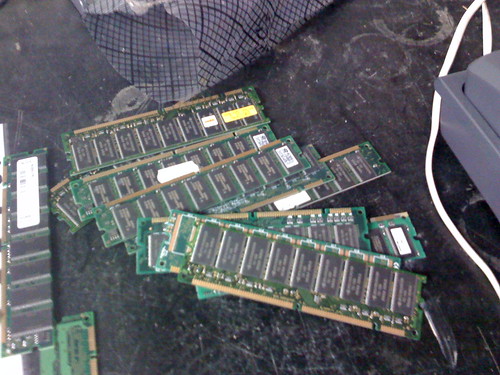
Currently, computers and other gadgets have grown rapidly, but in computers or gadgets like android tablets can not be separated with RAM (Random Access Memory), RAM is the memory of a computer and android tablet. RAM is hardware whose function is to store data temporarily by the operating system or software while PC or gadgets on.

RAM
image source : flickr.com


The means by analogy, RAM is a toll road that connects between the processor computers with HDD or flash drive. This could mean that the analogy of the human brain, then the HDD or hard drive is a long term memory and RAM is short term memory. The processor speed is increasingly steeper quality will be optimal if the capacity of the RAM used is also great.

Short term memory in his duty always to act quickly. And short term memory has a limited capacity, so if the capacity is too large or exceeded the computers that we use will seem slow or heavy, as well as RAM.

In connection or working on computers and gadget that make it faster, with the ram makes the processor does not need to access the hard disk to read the data. Speed ​​data access also differ very much. To access the data in RAM, the processor takes a nanosecond scale. Meanwhile, to access the data on the HDD, the time taken in milliseconds scale.

Each byte software or applications that run constantly consumes memory. In addition ram should handle the operating system to keep working. So if your ram capacity is low, then automatically the number of applications that can not be handled too much.
Reference : Berita Teknologi

Posted by: Zein Okeh Share Everything, Updated at: Tuesday, August 28, 2012

TeamViewer App for android smartphones and tablets


For users of Samsung smartphones and tablets android With the new app TeamViewer QuickSupport (starting from Android 2.3), this is now possible from a remote location.  you can control the devices via a computer.

One remotely control devices is TeamViewer QuickSupport  app that can allow you to control your Samsung smartphone or tablets via pc. So you can display samsung screen and control via computer.

TeamViewer is one of the main remote control device that can be used very easily and free of charge.

TeamViewer also available for android, iphone and ipad.

Simple way to start doing remote control between samsung smartphones or tablets with your PC are as follows.


This is how it works:
Your counterpart starts TeamViewer QuickSupport...


TeamViewer QuickSupport


  • Download teamviewer app From Google play or Teamviewer
  • ...and gives you his TeamViewer ID or sends it via text message or e-mail.


TeamViewer QuickSupport start screen


You enter the ID into your TeamViewer and connect as usual. After a brief confirmation, you can control the device.


Remote control window during the connection to a Samsung tablet
Remote control window during the connection

In this way, you could, for example, change settings or perform synchronizations of the e-mail account without any problems. The app is also particularly suitable for connections to your own Samsung phone or tablet to conveniently enter data via your computer.
TeamViewer QuickSupport is immediately available for download to Samsung users in Google Play and Samsung Apps. The app supports Samsung phones and tablets with original firmware and Android operating system starting from version 2.3.
Wishing you lots of continued success with the mobile use of TeamViewer. Source : TeamViewer

Posted by: Zein Okeh Share Everything, Updated at: Wednesday, August 22, 2012

From browser we can control Android explorer


Android is an OS which is very easy to use and apps we need is available free of charge and most of us can use it.

we want to transfer data or files from computer to android or otherwise we would need a data cable. If we often to insert the data, then we're going to bother because it is often plug and unplug the data cable. Apparently there is an easy way to insert a file into android without using cables. The conditions in place should there internet connection ^ ^ We can use the browser to transfer data. Application name is AirDroid.
Airdroid
image source : flickr.com

Besides to transferring data, it can be listening to music, send SMS via the browser. How to transfer data to android via browser ?, take the steps below :

- Please download and install the application here, if already installed then run the application with the tab on the Start button, then there are 2 information, including IP address and Password.

- Open the browser and type the IP address the same as that included in the application. Enter the password also has given and click the Login button.

- After connected, you will see the main page of AirDroid that displays information about the Android device you use. At the bottom right corner, the show also signal strength and battery power capacity of the device. Some of the functions available is a look at SDcard, browsing pictures, listening to music,  send SMS.

- To transfer the data, simply double click the icon files. Then it will show explorer-style window that displays the contents of the SDCARD. Here you can perform the function of copy, cut, delete and rename. To download a file from the Android device to a PC, select the export option. You can also drag and drop functionality for more quickly.

- Send SMS too easy, you can access a list of contacts from your Android device by clicking the Contacts button. Typing an SMS message is clearly easier to do because you typed using the keyboard.

- If you are interested, use the other functions such as play music files or view images.

Source : Blog bontang

Posted by: Zein Okeh Share Everything, Updated at: Thursday, August 16, 2012

How to speed up android phone


Currently, there are many who have phone wih android os, from cheap to expensive. Along with the age that we have android phones, android phone then over time we began to slow, and even sometimes actually hang ... The phone is almost the same like PC needs maintenance for optimum performance. Here's how to care for Android phones:
android phone pictures
image source : photobucket.com


Perform Root By Phone:
If you do not mind losing phone warranty, it is advisable to perform root on your smart phone. This action makes you have full control of the phone. You can remove some bloatware or not important applications that have been immersed in the Android phone, and install the essential applications only. Another benefit of rooting is that you no longer depend on the vendor to update its Android. But rooting must be done carefully, because if something goes wrong you can make the phone can not be used.

Clean Memory Card: This step will not make a direct phone performance improves, but it makes sense to delete the files that have been unused. DiskUsage program can use to find out what application or file that takes up space on the memory card. Clean the memory card should be done after uninstall an application, because some applications still leave even though they had deleted the data folder. If the phone is on-root, download the SD Maid to remove junk files automatically.

Android Application Uninstall: There are times when an application is not installed perfectly, leading to problems on your smart phone. Problem could interfere with critical data storage process in the memory card, or a notification that can not be eliminated. Try to uninstall or remove the application that is not too important, and rarely used. That would ease the burden on the phone, and more space available for storing other data.

Clear Cache: Ever had an application crashes? Instead of having to delete and then re-installing a different, try cleaning the cache. These simple steps will help prevent crashes in the application and will not bring new problems. How to remove the cache is to open the Settings menu on your phone, click Applications, then select Manage Application, tap the application crashes. The data will remain secure, only you will experience a temporary difficulty to access some files.

source : Blog bontang | Internet Sehat 

Posted by: Zein Okeh Share Everything, Updated at: Monday, August 06, 2012

Choosing a Qualified Android phone Tips


Android Mobile now has many fans or lot of users, ranging from the lower, middle, up and over.

Besides, also present in the market has plenty of options that we can choose. Android phone local, imported, high end, low end and others. But the android mobile phone as if that is having the best quality?
android-logo Pictures, Images and Photos
image source : photobucket.com

To select Mobile android with better quality for us to use at least there are some things to consider before buying it.

1. The existence of the operating system update.
The operating system is an open source operating system has always provided an update on a regular basis. However, not all manufacturers provide mobile android system update.

2. The quality of the processor

The existence of the processor determines the speed of the Android mobile phone is. However, not all types of processors have a high quality. Quality include power consumption, processor speed and others. However, the processor does not work alone in determining the quality of a mobile phone. The processor must also be accompanied by the RAM and GPU are embedded in cell phones.


3. internal memory

Android mobile phone is a smart phone. And, intelligence can be used with appropriate thanks to the selection of the appropriate application. And, of course mobile phones with large storage capacity to be a better alternative.

4. network access

You could have chosen a cheap Android phone. However, if the phone is not equipped with fast internet access network, the phone will not be utilized completely. In the market, there are Android phones are featured with 3G or even 4G networks.


Reference : beritateknologi.com | http://www.beritateknologi.com/tips-memilih-handphone-android-berkualitas/

Posted by: Zein Okeh Share Everything, Updated at: Wednesday, August 01, 2012

Connected your Android with your PC


Easy to make  your Android connected with your computer via usb or bluetooth.

Connect to a PC: When connecting to a phone or Android tablet to computer, a memory card should be mounted so that can be read by a computer. On Android Froyo, to do this, you only to-tap-drag the notification bar at the top of the screen. Tap [USB Connected], then select option [Mount] or [Turn on USB storage]. Wait a moment, then the memory card you will read on a computer.

Android App Pictures, Images and Photos
image source : photobucket.com

Manage Folders: Set the data you receive from Bluetooth transferan collected directly in a folder, or you want some important applications that have been featured on the homescreen collected in one place, it can be done easily. Tap-durable homescreen screen and choose [Folders] from the menu that appears. To collect the application, select [New folder]. Enter with applications to tap-drag it to a folder that was created. Transferan Bluetooth for data, you choose the option bias [Receive List from a Bluetooth].

Use new keyboard: Many applications allow you to change the layout of the virtual keyboard. However, an application or a new keyboard that must be activated first. Why, despite being installed, the new keyboard does not automatically be used. To activate it, try running an application that requires a keyboard in its management, such as SMS or e-mail. Tap-hold on the text entry box and select the option [Input method] that appears. Select the new keyboard applications already installed, then the new keyboard layout will be applied.
Reference : dedepurnama.blogspot.com | Mengkoneksikan Android Ke PC dan Mengelola Folder

Posted by: Zein Okeh Share Everything, Updated at: Wednesday, August 01, 2012
Related Posts Plugin for WordPress, Blogger...
Powered by Blogger.