Find info about electronics prices, discounts, top deals in link, like US below.
Showing posts with label Android. Show all posts

How to install android sdk ubuntu and windows


Actually I just wanted to give you a little tutorial or how to install android sdk on your pc or laptop with ubuntu os, but the same might as well install android sdk emulator on your computer or laptop pc with windows os like windows xp, windows 7, or Windows 8 as do almost the same and little disparate.

In android sdk we can use whatsapp application or WeChat on a computer with the help of this emulator android sdk installation, and if your computer is connected to the Internet then the android sdk emulator has been able to connect to the internet without any setting.
android sdk emulator ubuntu

* How to install android sdk emulator on ubuntu:


1. Install Java or OpenJDK on your ubuntu.

Open synaptic package manager or ubuntu software center and type "OpenJDK" without quotes then there will be available in accordance with the OpenJDK version of ubuntu 10.04 ubuntu instance it would appear OpenJDK 6 right-click and mark for install. Wait until the process is complete. To install openjdk-7 see here
In terminal :
#sudo apt-get install openjdk-6-jre

2. Download the Android SDK emulator here.

3. Extract the Android SDK has been downloaded into documents or anywhere up as needed :).

4. Open terminal by pressing CTRL + ALT + T or click Applications -> Accessories -> Terminal. Typing sudo su and enter your password.

5. Navigate your terminal to the android sdk folder. For example, if the Android SDK folder located in Documents then follow these steps:

  • cd Documents --> cd android-sdk-linux -- > cd tools --> ./android
  • So do not want typing like the above do as follows:

    - Open a terminal its way as the No. 4 typing "gedit ~ /. Bashrc" without the quotes and enter the text below at the very top and then save.
  • #AndroidDev PATH export PATH=${PATH}:/home/???/Documents/android-sdk-linux/tools export PATH=${PATH}:/home/???/Documents/android-sdk-linux/platform-tools
note:the name of the red "/ home /??? / Documents / android-sdk-linux / tools" and that the second is the folder where I store the android sdk. Adjust to the folder where you saved.- Still diteminal the following command "gedit / etc/udev/rules.d/51-android.rules" without quotes and input the text below ".

SUBSYSTEM=="usb", ATTRS{idVendor}=="0bb4", MODE="0666"

SUBSYSTEM=="usb", ATTRS{idVendor}=="0502", MODE="0666"

SUBSYSTEM=="usb", ATTRS{idVendor}=="12d1", MODE="0666"

SUBSYSTEM=="usb", ATTRS{idVendor}=="1004", MODE="0666"

SUBSYSTEM=="usb", ATTRS{idVendor}=="22b8", MODE="0666"

SUBSYSTEM=="usb", ATTRS{idVendor}=="04e8", MODE="0666"

SUBSYSTEM=="usb", ATTRS{idVendor}=="0fce", MODE="0666"

SUBSYSTEM=="usb", ATTRS{idVendor}=="0489", MODE="0666"

SUBSYSTEM=="usb", ATTRS{idVendor}=="18d1", SYMLINK+="android_adb", MODE="0666"

SUBSYSTEM=="usb", ATTRS{idVendor}=="04e8", MODE="0666", GROUP="plugdev"

To install the android sdk at the root can be viewed of the source ubuntu comunity here.

Then save and reboot or restart your laptop or computer. So that when you open the android sdk does not necessarily have to enter the android sdk folder on terminal. simply by opening a terminal and sudo password and then android sdk android in laptop or pc you'll leave.

6. Open a terminal and typing sudo ubuntu android then enter your password.

7. After the android SDK emulator appears and then select the check tools and android files that get installed like in the picture below.
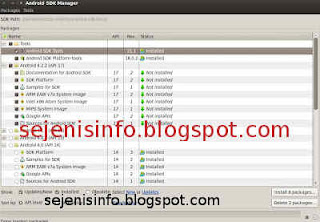
android avd emulator ubuntu

In the picture above I did install android 4.2 version and you can choose the version that will be installed android as android ICS, android honeycomb etc as you wish. At the bottom of the Extras folder with writing a check Android support libraries, Google play service, Google usb driver and so adjust it with the needs.

8. Click the install packages and licenses accept check, wait a while until installation is complete.

9. After install android sdk on PC or laptop is complete then click the Tools button located at the top left after the packages.

10. After the new window appears select the window or click the Manage button AVDS ... and click the New button on the right existing, well here you can choose your favorite android version there is a 10 inch size to a small size, select the size of the 7-inch or 5 inch that if the computer or laptop has a less specs computer so you are not too hang up or heavy and lag.

11. A new window will appear when the button is clicked and a new Insert your name free android for example name is androidku, android select your choice according to size preference. If you want to change the size of the internal memory replace it from 200 to 512 for example, and the contents of sd card to 1024 = 1GB and click OK.

12. If it is then in view avd there will be a new menu that has been created is androidku. Click start to open its android os android will appear according to your choice.

* To install the Android SDK on windows is the same way.


1. Download and Install the java application here.

2. Android Download for windows here.

3. Install android sdk on windows and if it is open android sdk installed and did his manner as above at the start of No. 7.

Video how to install android sdk emulator on pc or laptop


Posted by: Zein Okeh Share Everything, Updated at: Monday, May 06, 2013

How to hide file in android apps


There are some important files and folders in a gadget like android, laptops and mobile phones as well as several other gadgets, allowing others to access the confidential files or files that others should not know it could be used either intentionally or unintentionally. What more if we use android which is often used by others as a friend, brother, sister and others. For that we need to hide files and folders is as safe as possible so that important files such as music, song, video, and files and folders will be maintained and can not be found by others.

So the question now is, how to hide files in android?, Now it is in fact not a difficult thing to do because in google play alone there are some android apps to hide video files, songs and other files easily.

My choice to hide files application in android are two android applications use very easy and also free to be downloaded Adao file manager and  File hide expert.

How to hide files in android with Adao File manager:

1. Download and install Adao file manager. But this apk on google play is not available, can be found in several forums and others.

2. Besides could to hide file and foler in android, Adao file manager also can be used for the file manager as a tool to open the folder, data on android, if in windows, Adao file manager similar to Windows Explorer. Back up the application, task manager etc..

3. After installed, open Adao file manager application, select the SD card and select the data or files will be hidden by tapping the file until it comes out and sliding up the options menu so that the menu option Hide files visible. File hide option menu picture is at the bottom.
hide file di android

4. After the file menu Hide seen just click the options menu and any files that will be hidden will disappear from menu.

5. To restore files that have been hidden, Close Adao file manager or back by clicking the back button so Adao file manager located in the main menu. There are several menu options upward shift so posts will be hidden files visible. Click the Hidden files or writing for the first time we are given to create your own password, enter the password that will be made, after the password is created and has been entered into the Hidden files and files that are hidden will be there, click on the file to be restored to the original place of a single click or click longer.
restore file on android hide

How to hide files and folders in android with File Hide  Expert:


1. Download and install File Hide expert here.

2. Once installed open the app and to hide files such as video, song or music, pictures and also click the folder or picture folders that reside on the top right.
hide files on android
3. Select the folder or file that will be hidden by clicking the plus button on the right.
hide expert android files

4. Once files or folders are on the menu hide, click the hide button to hide all files or folders, these are available at the bottom left. And to restore the files and folders in hide just click the unhide all button or click the x button.
hide folder on android

5. Good luck.


Posted by: Zein Okeh Share Everything, Updated at: Wednesday, May 01, 2013

Screen capture for android with or without apps


Starting from the question in accusing me of someone who has the android phone "How do I capture picture on android?" Then I told screenshots android app? that same question with differend woords :) its kind that is a question when it was still new on using that android and not yet one week using android phone, in fact initially I also do not know how do it! :).

But since the Internet is now easier then I was open an internet in my room and searching in google, there are many applications that are in the google search, there could be no need to use the application and without root and there is also to make screen shot or screen capture applications need application and root. It still depends on the choice of you which is the best to use.

Also happened to be at that time I found a blog that I forgot to mention that blog and I'm sorry for him to posting back taht knowledge in my blog, way without the screenshot application on android i use samsung galaxy young. Ow much of a coincidence, is not really a coincidence everything is set up. The first I gave a screen capture images in a way that no android apps.

* How to Screenshot image without android application and without root on samsung galaxy Y GT S5360.


1. Take your phone and turn on:).
2. Screen is ready to be shot and then press a button on the center continues to press the back button on the the right once, the last push button on / of phone one and the picture will be soon in capture or in print to the screenshots folder.

screenshot image on android


3. To know the results open the gallery and see the screenshots folder there are the results.

* How to screenshot or capture an image in android with the application:

There are some screen shots android apk free or paid which are in google play we can choose according to our choice and according to your needs.

1. No Root Screenshot It, android screen capture application which is paid but its use does not need to root our android phone so it can be directly used.
2. Ultimate screenshots made ​​by Ice Cold Apps. Screen capture apps for android that there are two options one could with root and does not require root.
3. Screenshot by Kastor Soft, after I try and I read before installing android on phone we've had rooted. Though we can save the results of his capture to image JPG, BITMAP or PNG.
4. Screenshot Free By Wise Shark Software, this one I have not tried.

Posted by: Zein Okeh Share Everything, Updated at: Wednesday, April 24, 2013

Photoshop for android apk download


Photoshop is a tool or application to edit our pictures to make the picture better and more in line with what we would expect, is a tool that does what is necessary for us as a photographer, although not a photographer but an amateur using photoshop can make the picture better. Photoshop is a tool that can be used in computers can also be used on android however photoshop for android, photoshop version is slightly different from the computer, editing tools become more simple and simple alias, his name is Adobe photoshop express.

Adobe Photoshop Express is a tool or android apps to edit photos easily run you can feel yourself.
Photoshop for Android is easier to use after we install android into us, then we run the photoshop express, and will be out the photos of us who are in the camera folder.

photoshop express android

photoshop for android

Step how to edit photos in photoshop express android conducted in:

1. Install Photoshop express, can be opened in the google play here. Or you can download by search google.
2. Once installed run photoshop express on your android and then there will be found your photos that are in the camera folder in android.
3. Select an image to be edited by clicking on the photo.
4. After the selected photo and click open image such as stripes and click edit photos, can be seen an example in the image below:
edit photo with photoshop android
photoshop settings in android
5. Began to edit our photos in photoshop android, top right side we can see the button to edit photos, ranging from the right to the left side of the first to give a special effect given by photoshop and also to provide border so we will look gorgeous photo:
with photoshop edit photo in android
photoshop for android make easy
6. The second is to provide the soft focus on our pictures to be edited so that the image can be seen clearly:
soft focus photo shop android
editing photos in android

7. Then the third part of the right button is the key to providing better color, and brithnes which will be more visible light.
exposure photos on android
exposure photoshop android

8. The last button the first button from the left or the fourth from the right is a button to crop the image, rotate and reverse straighten photos.

9. Once completed in the edit do not forget to save the photo, to save photos can click the button below the bottom right can see the image below:
save photoshop edit photo from android
photshop  save tablet
10. To upload to facebook or twitter can click the button lines on the android task bar and click the upload button :
upload photos to facebook in android
upload photo to facebook
Adobe photoshop express it as the name suggests editing the quick and easy way. But for those of you who are not so fond of photoshop express and want to edit it even better you can use the touch photoshop, but photoshop is paid can be found here


Posted by: Zein Okeh Share Everything, Updated at: Tuesday, April 16, 2013

Triple boot windows 8 ubuntu and android x86


Actually I have long time wanted to post how to create a triple boot between windows 8, ubuntu linux and android x86. How to dual boot or triple boot you can wear is in fact not a difficult thing you can do on your computer properly. But here I give to already know the operating system installer. And if you want to create dual booting between windows 8 and windows xp can be seen here how to dual boot windows 8 and windows xp.
triple boot operating system

Here are the steps to make your computer can use windows 8, ubuntu and android:

1. Create a partition into several sections, for windows 8 and android can be united without change, but for ubuntu to be installed on a separate partition.

Note: to install ubuntu operating system used capacity is about 3.5 gb for windows 8 about 10gb more and for android approximately 600MB. But you have to make partition more than that due in part to install multiple applications required.

2. Download the required operating system all for free.

  • Windows 8 download here
  • Linux ubuntu 12:10 here
  • Android x86 here

But I use windows 8 in different version from being downloaded, or if you already have all three of its operating system straight into the next step.

3. For the first I install Windows 8 into pc / computer with no cd or usb flash drive, if you have a cd install windows 8 with cd and can directly to the second drive, or drive D or you can install it to the first drive or drive C:. Follow all the steps involved when installing windows 8. Once the installation is finished and completed all the configuration settings, perform the next step.

4. Restart the computer and install ubuntu on drive C or drive the first or whatever drive do you want install it, for those who ever install ubuntu may be very easy, configure the settings as needed, then there'll will get some choice about windows 8 documents to import data into ubuntu, if you want to import data please tick the box parts, if not leave it blank.

5. When you have finished making install ubuntu, reboot then at the first look at boot grub2 there will be display for you to choose a system that will be used. If Windows 8 does not exist on the options add in grub2.

Go to the terminal and type the following command:
sudo gedit / boot / grub / grub.cfg "enter"
Search # # # END / etc/grub.d/30_os-prober # # # Copy and paste the text below before writing the above. or just add this below ubuntu OS

### BEGIN /etc/grub.d/30_os-prober ###
menuentry "Windows 8 Recovery Environment (loader) (on /dev/sda6)" --class windows --class os {
insmod part_msdos insmod ntfs set root='(hd0,msdos6)' search --no-floppy --fs-uuid --set=root AEC2F742C2F70D79 drivemap -s (hd0) ${root} chainloader +1
}


Edit the red text (hd0, msdos6) according to the partition windows is installed. eg windows 8 installed on partition 2 then replace with (hd0, msdos2).


6. The next step involves installing android-x86 on pc or computer.

  • Burn Android-x86 iso that has been downloaded into the hard drive or usb.
  • Restart the computer go into bios to press the delete key or F2. select the bios setting and select the first boot to usb, Save and restart, or in some cpu available directly from the keyboard to select click F9 or F11 to select the boot menu when the computer restart.
  • The first boot will look like this:
  • install android in pc booting
  • Select the bottom part of the install android
  • Select the partition to be used
  • partition android in pc
  • If you want to format the partition on the hard drive then select the format specified in accordance with the wishes of existing ext3, ext2, ntfs and fat32 and data will be lost on that partition. If you don't want formatted it's okay.
  • android in pc
  • Choose skip to not install grub.
  • grub in android pc
  • In this section select yes.
  • android in computer
  • Installation is running.
  • install android in pc
  • After the installation can choose to run android directly or reboot first.

If after the restart there was no option to enter the boot menu to android then go into ubuntu and open the terminal. Add text below into grub2 by typing "gedit / boot / grub / grub.cfg" interminal without quotes.

menuentry "Android-x86 4.0 RC2" - class android - class linux - class os {
set root = '(hd0, 7)'
linux / android-4.0-RC2/kernel root /dev/ram0 androidboot.hardware=eeepc quiet vga=788 dpi=120 i915.powersave i915downclock=1=1=2 usbcore.autosuspend SRC=/ android-4.0-RC2 /
initrd /android-4.0-RC2/initrd.img
}

menuentry "Android-x86 4.0 RC2 debug mode" - class android - class linux - class os {
set root = '(hd0, 7)'
linux / android-4.0-RC2/kernel root=/dev/ram0 androidboot.hardware=eeepc quiet vga=788 dpi=120 i915.powersave i915downclock=1=1=2usbcore.autosuspend SRC=/android-4.0-RC2 /
initrd /android-4.0-RC2/initrd.img
}

replace hd0, 7 with partitions are used as partitions if android OS used is sda3 then replace with hd0, 3.

If you're still confused can comment below.


Posted by: Zein Okeh Share Everything, Updated at: Tuesday, December 04, 2012

Angry birds star wars download in 8th november


The latest angry birds games will be downloaded later on 8 november, angry bird is the game version of star wars.
Rovio developers are in Finland is developing various features of the angry birds star wars by adding a few characters on star wars movie such as Luke sky walker and Princes Leia. In this angry bird star wars game enemies were adjusted with the enemy star wars style, how to play almost the same with previous angry birds.
angry bird starwars

The uniqueness of this game is the character that star wars style birds with a laser sword held by Luke Skywalker is on star wars movie, so by playing star wars Angry birds with red bird with a style that will emit a laser sword as they will destroy his enemies, different from the little pink birds Princes Leia,she will emit a pink laser into his enemies when started to fly.


You can download Angry Birds Star Wars here
Reference : Berita Teknologi

Posted by: Zein Okeh Share Everything, Updated at: Saturday, November 03, 2012
Related Posts Plugin for WordPress, Blogger...
Powered by Blogger.