Find info about electronics prices, discounts, top deals in link, like US below.
Showing posts with label Windows 8. Show all posts

How to install android sdk ubuntu and windows


Actually I just wanted to give you a little tutorial or how to install android sdk on your pc or laptop with ubuntu os, but the same might as well install android sdk emulator on your computer or laptop pc with windows os like windows xp, windows 7, or Windows 8 as do almost the same and little disparate.

In android sdk we can use whatsapp application or WeChat on a computer with the help of this emulator android sdk installation, and if your computer is connected to the Internet then the android sdk emulator has been able to connect to the internet without any setting.
android sdk emulator ubuntu

* How to install android sdk emulator on ubuntu:


1. Install Java or OpenJDK on your ubuntu.

Open synaptic package manager or ubuntu software center and type "OpenJDK" without quotes then there will be available in accordance with the OpenJDK version of ubuntu 10.04 ubuntu instance it would appear OpenJDK 6 right-click and mark for install. Wait until the process is complete. To install openjdk-7 see here
In terminal :
#sudo apt-get install openjdk-6-jre

2. Download the Android SDK emulator here.

3. Extract the Android SDK has been downloaded into documents or anywhere up as needed :).

4. Open terminal by pressing CTRL + ALT + T or click Applications -> Accessories -> Terminal. Typing sudo su and enter your password.

5. Navigate your terminal to the android sdk folder. For example, if the Android SDK folder located in Documents then follow these steps:

  • cd Documents --> cd android-sdk-linux -- > cd tools --> ./android
  • So do not want typing like the above do as follows:

    - Open a terminal its way as the No. 4 typing "gedit ~ /. Bashrc" without the quotes and enter the text below at the very top and then save.
  • #AndroidDev PATH export PATH=${PATH}:/home/???/Documents/android-sdk-linux/tools export PATH=${PATH}:/home/???/Documents/android-sdk-linux/platform-tools
note:the name of the red "/ home /??? / Documents / android-sdk-linux / tools" and that the second is the folder where I store the android sdk. Adjust to the folder where you saved.- Still diteminal the following command "gedit / etc/udev/rules.d/51-android.rules" without quotes and input the text below ".

SUBSYSTEM=="usb", ATTRS{idVendor}=="0bb4", MODE="0666"

SUBSYSTEM=="usb", ATTRS{idVendor}=="0502", MODE="0666"

SUBSYSTEM=="usb", ATTRS{idVendor}=="12d1", MODE="0666"

SUBSYSTEM=="usb", ATTRS{idVendor}=="1004", MODE="0666"

SUBSYSTEM=="usb", ATTRS{idVendor}=="22b8", MODE="0666"

SUBSYSTEM=="usb", ATTRS{idVendor}=="04e8", MODE="0666"

SUBSYSTEM=="usb", ATTRS{idVendor}=="0fce", MODE="0666"

SUBSYSTEM=="usb", ATTRS{idVendor}=="0489", MODE="0666"

SUBSYSTEM=="usb", ATTRS{idVendor}=="18d1", SYMLINK+="android_adb", MODE="0666"

SUBSYSTEM=="usb", ATTRS{idVendor}=="04e8", MODE="0666", GROUP="plugdev"

To install the android sdk at the root can be viewed of the source ubuntu comunity here.

Then save and reboot or restart your laptop or computer. So that when you open the android sdk does not necessarily have to enter the android sdk folder on terminal. simply by opening a terminal and sudo password and then android sdk android in laptop or pc you'll leave.

6. Open a terminal and typing sudo ubuntu android then enter your password.

7. After the android SDK emulator appears and then select the check tools and android files that get installed like in the picture below.
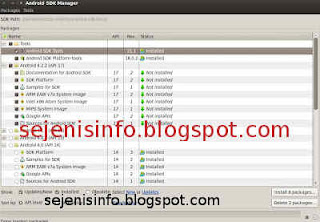
android avd emulator ubuntu

In the picture above I did install android 4.2 version and you can choose the version that will be installed android as android ICS, android honeycomb etc as you wish. At the bottom of the Extras folder with writing a check Android support libraries, Google play service, Google usb driver and so adjust it with the needs.

8. Click the install packages and licenses accept check, wait a while until installation is complete.

9. After install android sdk on PC or laptop is complete then click the Tools button located at the top left after the packages.

10. After the new window appears select the window or click the Manage button AVDS ... and click the New button on the right existing, well here you can choose your favorite android version there is a 10 inch size to a small size, select the size of the 7-inch or 5 inch that if the computer or laptop has a less specs computer so you are not too hang up or heavy and lag.

11. A new window will appear when the button is clicked and a new Insert your name free android for example name is androidku, android select your choice according to size preference. If you want to change the size of the internal memory replace it from 200 to 512 for example, and the contents of sd card to 1024 = 1GB and click OK.

12. If it is then in view avd there will be a new menu that has been created is androidku. Click start to open its android os android will appear according to your choice.

* To install the Android SDK on windows is the same way.


1. Download and Install the java application here.

2. Android Download for windows here.

3. Install android sdk on windows and if it is open android sdk installed and did his manner as above at the start of No. 7.

Video how to install android sdk emulator on pc or laptop


Posted by: Zein Okeh Share Everything, Updated at: Monday, May 06, 2013

How to know windows version installed


Computer or laptop which already windows installed either windows xp, windows 7 or windows 8, perhaps we do not know which version of Windows that is used on our pc. There are many versions of windows like windows xp service pack 1, windows xp sp2 and also on windows xp sp3 there are several other versions as windows xp for gaming, windows xp media center, windows xp home edition, or windows with x32 or x64 bit etc..

If I could mention one by one until dawn :). Our PC has installed the windows being installed by others of course we do not know the most likely version is used, the following well below I will give a little info about how to know which version of Windows that is used in your computer or laptop.

How to know the version of windows on windows xp and windows 7:

In windows to know which version of Windows that is used almost same way, but not nearly but thats same way.

1. If its on the desktop or on the main screen there is icon my computer, just right click mouse on my computer icon and click properties that its.

2. If the My Computer icon on the main screen or on the desktop it does not exist then the way we use open windows explorer then right click the mouse and then click properties.
See the example image below.

how to know windows version


Display system properties windows xp deluxe version.
system properties windows


3. If you want to see the whole system including the use dxdiag version used then use the following:
- Click start and click run.
run button windows


- Typing "dxdiag" without quotes, then enter will be out the display as shown below.
dxdiag windows xp deluxe


For his appearance may vary slightly depending on the theme used.

How to know windows 8 version:
For an extra little info for those who may be new including my first time on using windows 8, may be will confused to looking for run and to run some command like cmd, dxdiag etc..Here a little info to find it:

1. Open windows explorer.
2. Right click mouse button and select Properties.

How to enter to run in Windows 8:

1. Move the mouse to the right monitor, will be out a menu.
windows 8 menu


2. Select the top menu the search menu and typing cmd.
windows 8 search command run dxdiag

If you want to open cmd as adminitrator just right click your on cmd icon and see on your screen below that will appear the options.


Posted by: Zein Okeh Share Everything, Updated at: Sunday, May 05, 2013

Windows 8 and windows 7 dual boot system


Around a couple of days ago my sister bought a samsung notebook with AMD A6-4400M APU Radeon (tm) HD graphics 2.70 GHz and 2 GB ram. That's just the information I used to create a dual boot windows 7 and windows 8 on the samsung laptop.

And before that I had made a post on how to dual boot windows 8 and windows xp on the pc, and dual boot or triple boot between windows, ubuntu linux and android. Whatever can be done on a computer or laptop that we have provided a laptop or pc we already meet the criteria or have the specs required for an operating system.

How to install dual boot windows 7 and windows 8 there are some things that need attention or need her to know some of the steps that must be done first. In samsung Laptop AMD A6-4400M vision the first thing change bios settings by clicking the F2 key when the laptop first time it runs, and then select the first boot the system it is cdrom first boot. Usually there are cdrom his name but I forgot the name of cd-romnya, because now the laptop was taken by my sister :).
dual boot windows 7 and windows 8

The first step to dual boot windows 7 and windows 8 are:


1. Make a partition on the hard drive, because its a new laptop so I created three partitions ie Drive C or the first partition is 100 GB,  drive D or a second partition around 50GB and for the rest Drive E for storage of data such as music files, video etc..
For the hard drive is already partitioned or already installed windows to make sure the partition is windows 8 windows 7 minimal  15G.
To create partition with  partition wizard tool see the video below :
2. Once the partition is created it is time to install the windows. First time that must be installed on your pc or laptop is windows 7, but it is okay if you want to install Windows 8 first and write cd key or serial number windows 7 to a paper for later needed during installation, enter into the windows 7 cd into cd-rom then restart your PC or laptop and then on the computer screen or laptop turns while press the F11 key to bring up the boot options of the first instance for the first boot drive and a second boot to cd-rom, now that we chose is the second boot is to boot to cdrom, but on some computers or laptops are different settings so if F11 can not work try by pressing F9 or F10 or F12. Or if the cd rom on your computer or laptop is damaged then it can do the installation of windows 7 on usb drive, to make a boot usb drive windows 7 can be found here.
3. If you've booted into the cd-rom then install windows 7 will run immediately and follow the steps according to instructions there. But to partition or select the appropriate partition we created earlier as the partition or drive C then select the partition, my advice would select the first partition or drive C to perform the installation windows 7, when the first partition or drive C: is for megabytes eg 100 MB or 200 MB and more, then select Drive D: a magnitude of more than 15 GB, the partition size of 100 or 200 mb and size assortment but I know size is not more than 500 MB is for the system partition or boot partition windows reverse the will be used for booting.
4. Once Windows 7 is installed on your computer or laptop, then the next ketahap.
5. Insert the CD or usb windows 8 restart your laptop or computer, as usual at the start screen appears click or press the F9 can boot, F10, F11 or F12 depending on your PC settings.
6. Once the PC or laptop is booting to the cdrom windows 8 and then select the appropriate languange and select the U.S. keyboard click next and install, well for its partition select the partition you created for Windows 8, for example Windows 7 installed on Drive C then windows 8 in installed on drive D. click next and the installation will begin just follow the steps in accordance with the instructions given there.
7. Once Windows 8 is installed it after restarting the computer or laptop then there are two choices aka boot the windows 7 and windows 8.
8. Good luck.

If you still get confused comments below this post. Thank you.


Posted by: Zein Okeh Share Everything, Updated at: Monday, February 18, 2013

Nokia lumia 920 windows phone 8 review


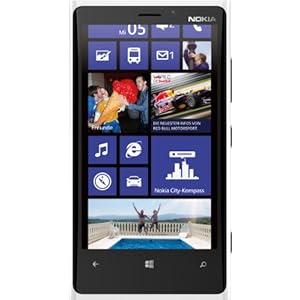
Nokia products still provide quality and extraordinary design, such as the nokia lumia 920, this phone has plenty of character and use Windows phone 8 operating system, handsets that maintain a beautiful design of the product previously the nokia lumia 900, but this handset is slightly different from the lumia 900 of a glossy windows phone 8 which has an important role for the survival of the company Nokia.

Nokia Lumia 920 is perfect as a gift for the holidays at this time, although coated with a glossy but will not easily slip in the hand and the size slightly larger than the previous handset. With a 4.5 inch screen will display the user interface perfectly with metro UI. Easy to set tiles that will suit us to setting like small, medium and large.

Nokia Lumia 920

nokia lumia 920


If we are talking about HD technology, the nokia lumia 920 has a better rate than other HD technology, nokia lumia 920 is  Puremotion HD technologically.

Viewed from the layout of each button, on the nokia lumia 920 looks very good, ranging from the headphone jack is located in the middle and holes corresponding micro speaker in place so it will be easier to listen to the music.

Designed with a unibody, which means users can not access to open the battery cover. And is available as a slot where the SIM card access, that if we would insert sim card then we have to use special tools. Regarding micro sd on nokia lumia 920 apparently does not provide for a micro sd slot, so no additional storage space.

Although only a 8.1MP camera features but using NFC technology and Pureview additional features that will be available on the nokia lumia 920.

Nokia Lumia 920 Option


nokia lumia 920 white 4g

Nokia Lumia 920 4G Windows Phone, White (AT&T)

See price here
Nokia lumia 920 windows

Nokia Lumia 920 Smartphone - Att Locked - White

Amazon.com Price : $636.18 (as of 12/09/2012 More detail)
Nokia lumia 920 black

Nokia Lumia 920 4G Windows Phone, Black (AT&T)

More detail
Nokia lumia 920 yellow

Nokia Lumia 920 4G Windows Phone, Yellow (AT&T)

More detail
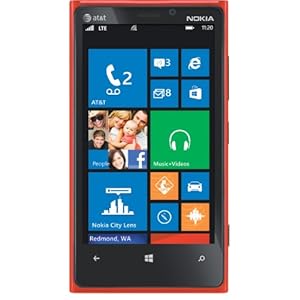
Nokia lumia 920 red

Nokia Lumia 920 4G Windows Phone, Red (AT&T)

More detail

Reference : Eragadget.com

Posted by: Zein Okeh Share Everything, Updated at: Sunday, December 09, 2012

Windows 8 in tablets launched from leading vendors


After android tablet now comes with a new color, which is a Windows-based tablet. Tablet Windows 8 now is a much discussed and be an interesting conversation to discuss. There will be an interesting competition between manufacturers will release Windows 8 tablets now that Microsoft's new operating system is not monopolized by one manufacturer only. Here are some of the leading vendors are ready to launch the tablet Windows 8 several leading vendors such as Sony, Lenovo, Microsoft, Samsung, and newcomers to the tablet world is DELL.

For each manufacturer will always be homework to create a Windows 8 tablet, because now consumers are smart to choose a tablet with good specs and of course at a price that suits their pocket contents.

It is a fundamental consideration for consumers to choose a tablet with low price but have adequate Specifications.

Currently, android has a tough task to be completed, the worksheet function processing application. Reportedly Windows 8 will be able to answer a tough task, so almost any tablet with Windows 8 operating system will be equipped with a keyboard dock, so it will be easier for users to process documents / spreadsheets, such as processing data in Microsoft Office. It is only news, but it seems android also has worksheets apps similar to Microsoft Office that Kingsoft Office applications.

Here are some of the vendors that will be ready to launch Windows 8 tablets:

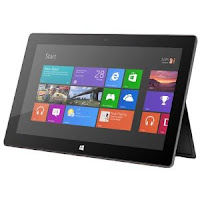
Microsoft Surface


microsoft windows surface

Windows 8 tablet is a tablet that comes from Microsoft itself and is ready to be marketed at a price that is quite affordable.

And certainly this tablet will be special because it will get full support from Microsoft and will be a major focus for application developers.


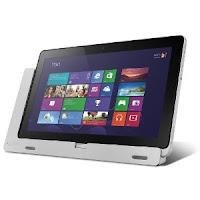
Acer Iconia W700 and W510


Acer Iconia W700-6607

This acer tablet has long glide in mid year 2012 ago. With a bright white color that characterizes the acer tablet windows 8 will be a formidable opponent for other vendors' products, because it has enough specs.


Lenovo ThinkPad


Lenovo tablet Windows 8 will be rolled at the official launching windows 8, with a 10.1-inch screen and HDMI port as well as a camera that will adorn the front and back windows 8 tablet's wireless display.

ASUS Transformer Book, ASUS Taichi, Asus Vivo Tab


For the third tablet will be launched on globally that means every country may soon be able to enjoy it. For that set up fund for Windows 8 tablets that will soon enliven the market and enliven the world of technology.

Samsung Ativ


Samsung has two versions of the Windows-based devices, both tablets Windows 8 and Windows Phone 8. Ativ name is the name for both gadgets windows 8 samsung and windows phone.


Reference : Eragadget.com

Posted by: Zein Okeh Share Everything, Updated at: Saturday, December 08, 2012

Triple boot windows 8 ubuntu and android x86


Actually I have long time wanted to post how to create a triple boot between windows 8, ubuntu linux and android x86. How to dual boot or triple boot you can wear is in fact not a difficult thing you can do on your computer properly. But here I give to already know the operating system installer. And if you want to create dual booting between windows 8 and windows xp can be seen here how to dual boot windows 8 and windows xp.
triple boot operating system

Here are the steps to make your computer can use windows 8, ubuntu and android:

1. Create a partition into several sections, for windows 8 and android can be united without change, but for ubuntu to be installed on a separate partition.

Note: to install ubuntu operating system used capacity is about 3.5 gb for windows 8 about 10gb more and for android approximately 600MB. But you have to make partition more than that due in part to install multiple applications required.

2. Download the required operating system all for free.

  • Windows 8 download here
  • Linux ubuntu 12:10 here
  • Android x86 here

But I use windows 8 in different version from being downloaded, or if you already have all three of its operating system straight into the next step.

3. For the first I install Windows 8 into pc / computer with no cd or usb flash drive, if you have a cd install windows 8 with cd and can directly to the second drive, or drive D or you can install it to the first drive or drive C:. Follow all the steps involved when installing windows 8. Once the installation is finished and completed all the configuration settings, perform the next step.

4. Restart the computer and install ubuntu on drive C or drive the first or whatever drive do you want install it, for those who ever install ubuntu may be very easy, configure the settings as needed, then there'll will get some choice about windows 8 documents to import data into ubuntu, if you want to import data please tick the box parts, if not leave it blank.

5. When you have finished making install ubuntu, reboot then at the first look at boot grub2 there will be display for you to choose a system that will be used. If Windows 8 does not exist on the options add in grub2.

Go to the terminal and type the following command:
sudo gedit / boot / grub / grub.cfg "enter"
Search # # # END / etc/grub.d/30_os-prober # # # Copy and paste the text below before writing the above. or just add this below ubuntu OS

### BEGIN /etc/grub.d/30_os-prober ###
menuentry "Windows 8 Recovery Environment (loader) (on /dev/sda6)" --class windows --class os {
insmod part_msdos insmod ntfs set root='(hd0,msdos6)' search --no-floppy --fs-uuid --set=root AEC2F742C2F70D79 drivemap -s (hd0) ${root} chainloader +1
}


Edit the red text (hd0, msdos6) according to the partition windows is installed. eg windows 8 installed on partition 2 then replace with (hd0, msdos2).


6. The next step involves installing android-x86 on pc or computer.

  • Burn Android-x86 iso that has been downloaded into the hard drive or usb.
  • Restart the computer go into bios to press the delete key or F2. select the bios setting and select the first boot to usb, Save and restart, or in some cpu available directly from the keyboard to select click F9 or F11 to select the boot menu when the computer restart.
  • The first boot will look like this:
  • install android in pc booting
  • Select the bottom part of the install android
  • Select the partition to be used
  • partition android in pc
  • If you want to format the partition on the hard drive then select the format specified in accordance with the wishes of existing ext3, ext2, ntfs and fat32 and data will be lost on that partition. If you don't want formatted it's okay.
  • android in pc
  • Choose skip to not install grub.
  • grub in android pc
  • In this section select yes.
  • android in computer
  • Installation is running.
  • install android in pc
  • After the installation can choose to run android directly or reboot first.

If after the restart there was no option to enter the boot menu to android then go into ubuntu and open the terminal. Add text below into grub2 by typing "gedit / boot / grub / grub.cfg" interminal without quotes.

menuentry "Android-x86 4.0 RC2" - class android - class linux - class os {
set root = '(hd0, 7)'
linux / android-4.0-RC2/kernel root /dev/ram0 androidboot.hardware=eeepc quiet vga=788 dpi=120 i915.powersave i915downclock=1=1=2 usbcore.autosuspend SRC=/ android-4.0-RC2 /
initrd /android-4.0-RC2/initrd.img
}

menuentry "Android-x86 4.0 RC2 debug mode" - class android - class linux - class os {
set root = '(hd0, 7)'
linux / android-4.0-RC2/kernel root=/dev/ram0 androidboot.hardware=eeepc quiet vga=788 dpi=120 i915.powersave i915downclock=1=1=2usbcore.autosuspend SRC=/android-4.0-RC2 /
initrd /android-4.0-RC2/initrd.img
}

replace hd0, 7 with partitions are used as partitions if android OS used is sda3 then replace with hd0, 3.

If you're still confused can comment below.


Posted by: Zein Okeh Share Everything, Updated at: Tuesday, December 04, 2012
Related Posts Plugin for WordPress, Blogger...
Powered by Blogger.