Find info about electronics prices, discounts, top deals in link, like US below.
Showing posts with label Ubuntu tips. Show all posts

How to install android sdk ubuntu and windows


Actually I just wanted to give you a little tutorial or how to install android sdk on your pc or laptop with ubuntu os, but the same might as well install android sdk emulator on your computer or laptop pc with windows os like windows xp, windows 7, or Windows 8 as do almost the same and little disparate.

In android sdk we can use whatsapp application or WeChat on a computer with the help of this emulator android sdk installation, and if your computer is connected to the Internet then the android sdk emulator has been able to connect to the internet without any setting.
android sdk emulator ubuntu

* How to install android sdk emulator on ubuntu:


1. Install Java or OpenJDK on your ubuntu.

Open synaptic package manager or ubuntu software center and type "OpenJDK" without quotes then there will be available in accordance with the OpenJDK version of ubuntu 10.04 ubuntu instance it would appear OpenJDK 6 right-click and mark for install. Wait until the process is complete. To install openjdk-7 see here
In terminal :
#sudo apt-get install openjdk-6-jre

2. Download the Android SDK emulator here.

3. Extract the Android SDK has been downloaded into documents or anywhere up as needed :).

4. Open terminal by pressing CTRL + ALT + T or click Applications -> Accessories -> Terminal. Typing sudo su and enter your password.

5. Navigate your terminal to the android sdk folder. For example, if the Android SDK folder located in Documents then follow these steps:

  • cd Documents --> cd android-sdk-linux -- > cd tools --> ./android
  • So do not want typing like the above do as follows:

    - Open a terminal its way as the No. 4 typing "gedit ~ /. Bashrc" without the quotes and enter the text below at the very top and then save.
  • #AndroidDev PATH export PATH=${PATH}:/home/???/Documents/android-sdk-linux/tools export PATH=${PATH}:/home/???/Documents/android-sdk-linux/platform-tools
note:the name of the red "/ home /??? / Documents / android-sdk-linux / tools" and that the second is the folder where I store the android sdk. Adjust to the folder where you saved.- Still diteminal the following command "gedit / etc/udev/rules.d/51-android.rules" without quotes and input the text below ".

SUBSYSTEM=="usb", ATTRS{idVendor}=="0bb4", MODE="0666"

SUBSYSTEM=="usb", ATTRS{idVendor}=="0502", MODE="0666"

SUBSYSTEM=="usb", ATTRS{idVendor}=="12d1", MODE="0666"

SUBSYSTEM=="usb", ATTRS{idVendor}=="1004", MODE="0666"

SUBSYSTEM=="usb", ATTRS{idVendor}=="22b8", MODE="0666"

SUBSYSTEM=="usb", ATTRS{idVendor}=="04e8", MODE="0666"

SUBSYSTEM=="usb", ATTRS{idVendor}=="0fce", MODE="0666"

SUBSYSTEM=="usb", ATTRS{idVendor}=="0489", MODE="0666"

SUBSYSTEM=="usb", ATTRS{idVendor}=="18d1", SYMLINK+="android_adb", MODE="0666"

SUBSYSTEM=="usb", ATTRS{idVendor}=="04e8", MODE="0666", GROUP="plugdev"

To install the android sdk at the root can be viewed of the source ubuntu comunity here.

Then save and reboot or restart your laptop or computer. So that when you open the android sdk does not necessarily have to enter the android sdk folder on terminal. simply by opening a terminal and sudo password and then android sdk android in laptop or pc you'll leave.

6. Open a terminal and typing sudo ubuntu android then enter your password.

7. After the android SDK emulator appears and then select the check tools and android files that get installed like in the picture below.
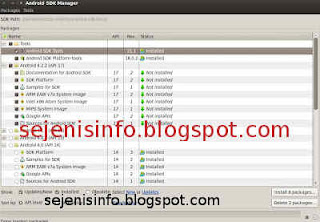
android avd emulator ubuntu

In the picture above I did install android 4.2 version and you can choose the version that will be installed android as android ICS, android honeycomb etc as you wish. At the bottom of the Extras folder with writing a check Android support libraries, Google play service, Google usb driver and so adjust it with the needs.

8. Click the install packages and licenses accept check, wait a while until installation is complete.

9. After install android sdk on PC or laptop is complete then click the Tools button located at the top left after the packages.

10. After the new window appears select the window or click the Manage button AVDS ... and click the New button on the right existing, well here you can choose your favorite android version there is a 10 inch size to a small size, select the size of the 7-inch or 5 inch that if the computer or laptop has a less specs computer so you are not too hang up or heavy and lag.

11. A new window will appear when the button is clicked and a new Insert your name free android for example name is androidku, android select your choice according to size preference. If you want to change the size of the internal memory replace it from 200 to 512 for example, and the contents of sd card to 1024 = 1GB and click OK.

12. If it is then in view avd there will be a new menu that has been created is androidku. Click start to open its android os android will appear according to your choice.

* To install the Android SDK on windows is the same way.


1. Download and Install the java application here.

2. Android Download for windows here.

3. Install android sdk on windows and if it is open android sdk installed and did his manner as above at the start of No. 7.

Video how to install android sdk emulator on pc or laptop


Posted by: Zein Okeh Share Everything, Updated at: Monday, May 06, 2013

Triple boot windows 8 ubuntu and android x86


Actually I have long time wanted to post how to create a triple boot between windows 8, ubuntu linux and android x86. How to dual boot or triple boot you can wear is in fact not a difficult thing you can do on your computer properly. But here I give to already know the operating system installer. And if you want to create dual booting between windows 8 and windows xp can be seen here how to dual boot windows 8 and windows xp.
triple boot operating system

Here are the steps to make your computer can use windows 8, ubuntu and android:

1. Create a partition into several sections, for windows 8 and android can be united without change, but for ubuntu to be installed on a separate partition.

Note: to install ubuntu operating system used capacity is about 3.5 gb for windows 8 about 10gb more and for android approximately 600MB. But you have to make partition more than that due in part to install multiple applications required.

2. Download the required operating system all for free.

  • Windows 8 download here
  • Linux ubuntu 12:10 here
  • Android x86 here

But I use windows 8 in different version from being downloaded, or if you already have all three of its operating system straight into the next step.

3. For the first I install Windows 8 into pc / computer with no cd or usb flash drive, if you have a cd install windows 8 with cd and can directly to the second drive, or drive D or you can install it to the first drive or drive C:. Follow all the steps involved when installing windows 8. Once the installation is finished and completed all the configuration settings, perform the next step.

4. Restart the computer and install ubuntu on drive C or drive the first or whatever drive do you want install it, for those who ever install ubuntu may be very easy, configure the settings as needed, then there'll will get some choice about windows 8 documents to import data into ubuntu, if you want to import data please tick the box parts, if not leave it blank.

5. When you have finished making install ubuntu, reboot then at the first look at boot grub2 there will be display for you to choose a system that will be used. If Windows 8 does not exist on the options add in grub2.

Go to the terminal and type the following command:
sudo gedit / boot / grub / grub.cfg "enter"
Search # # # END / etc/grub.d/30_os-prober # # # Copy and paste the text below before writing the above. or just add this below ubuntu OS

### BEGIN /etc/grub.d/30_os-prober ###
menuentry "Windows 8 Recovery Environment (loader) (on /dev/sda6)" --class windows --class os {
insmod part_msdos insmod ntfs set root='(hd0,msdos6)' search --no-floppy --fs-uuid --set=root AEC2F742C2F70D79 drivemap -s (hd0) ${root} chainloader +1
}


Edit the red text (hd0, msdos6) according to the partition windows is installed. eg windows 8 installed on partition 2 then replace with (hd0, msdos2).


6. The next step involves installing android-x86 on pc or computer.

  • Burn Android-x86 iso that has been downloaded into the hard drive or usb.
  • Restart the computer go into bios to press the delete key or F2. select the bios setting and select the first boot to usb, Save and restart, or in some cpu available directly from the keyboard to select click F9 or F11 to select the boot menu when the computer restart.
  • The first boot will look like this:
  • install android in pc booting
  • Select the bottom part of the install android
  • Select the partition to be used
  • partition android in pc
  • If you want to format the partition on the hard drive then select the format specified in accordance with the wishes of existing ext3, ext2, ntfs and fat32 and data will be lost on that partition. If you don't want formatted it's okay.
  • android in pc
  • Choose skip to not install grub.
  • grub in android pc
  • In this section select yes.
  • android in computer
  • Installation is running.
  • install android in pc
  • After the installation can choose to run android directly or reboot first.

If after the restart there was no option to enter the boot menu to android then go into ubuntu and open the terminal. Add text below into grub2 by typing "gedit / boot / grub / grub.cfg" interminal without quotes.

menuentry "Android-x86 4.0 RC2" - class android - class linux - class os {
set root = '(hd0, 7)'
linux / android-4.0-RC2/kernel root /dev/ram0 androidboot.hardware=eeepc quiet vga=788 dpi=120 i915.powersave i915downclock=1=1=2 usbcore.autosuspend SRC=/ android-4.0-RC2 /
initrd /android-4.0-RC2/initrd.img
}

menuentry "Android-x86 4.0 RC2 debug mode" - class android - class linux - class os {
set root = '(hd0, 7)'
linux / android-4.0-RC2/kernel root=/dev/ram0 androidboot.hardware=eeepc quiet vga=788 dpi=120 i915.powersave i915downclock=1=1=2usbcore.autosuspend SRC=/android-4.0-RC2 /
initrd /android-4.0-RC2/initrd.img
}

replace hd0, 7 with partitions are used as partitions if android OS used is sda3 then replace with hd0, 3.

If you're still confused can comment below.


Posted by: Zein Okeh Share Everything, Updated at: Tuesday, December 04, 2012

Customization for ubuntu 11.04 desktop


To make ubuntu 11.04 desktop look better and pleasing to the eye this app is cairo-dock, I do this in my tablet pc and can be used in netbooks or any other pc.

cairo-dock is a place fatherly save all icons at ubuntu like panel, that we can put in various places, as the bottom, top, left or right.
but I have not tried it on another ubuntu like ubuntu 11.10 and 12.04 maybe you can try cairo dock to the lates ubuntu.

This sample view cairo-dock
cairo-dock ubuntu 11.04

1. Install Cairo-dock in ubuntu software center type in search cairo-dock, and install.
2. After install select cairo-dock with no opengpl if your video card no opengl.
customization ubuntu

3. If you want change ubuntu 2d to ubuntu classic to use cairo-dock you must delete curent panel.
ubuntu classic cairo dock

4. Change top panel background to transparant.


5. TO configure theme  in cairo dock just right click in cairo dock panel and chooce configure.

6. To move applet to another dock right click in the applet and select move.


For more detail click here 
Reference : news-softpedia - Ubuntu-11-04-Desktop-Customization-Guide

Posted by: Zein Okeh Share Everything, Updated at: Friday, June 15, 2012

Change login screen on Ubuntu 11.04


To change wallpaper or login screen picture just add repository in terminal :
This inforation may have expired or outdated but who like to use ubuntu 11.04 and did not know how to change the login screen and make a beautiful dock.
But this nice for ubuntu in tablet pc / laptop / netbook:

Here the steps to change wallpaper or login screen picture type command in terminal
sudo add-apt-repository ppa:tualatrix/ppa
sudo apt-get update
sudo apt-get install ubuntu-tweak

Or you can download and install package deb in here


1. After install has finished go to -> Application -> System Tools -> Ubuntu Tweak
ubuntu tweak system tool

2. In ubuntu tweak chooce login settings.

login screen ubuntu

3. Chooce your favourite picture to be set on login screen after reboot.

you can setting login screen in ubuntu 11.10 too. here the lik source http://www.multimediaboom.com/how-to-change-login-screen-in-ubuntu-11-04/
Source : how-to-change-login-screen-in-ubuntu-11-04

Posted by: Zein Okeh Share Everything, Updated at: Monday, June 11, 2012

Mount raw img file in ubuntu


Yesterday I tried to open a file of type is raw img file. Not as usual after I unzip the file and then I open the terminal command in ubuntu to mount raw img file to the folder with ussual command terminal in linux / ubuntu but raw img file could not mount because fie type is different from the usual img file with img file is the raw img.

File that I use is a new file I was downloaded is ubuntu-12.04-preinstalled-desktop-armhf+ac100.tar.gz file that Ubuntu os for netbook I will try to use for my tablet pc.
Unzip file ubuntu-12.04-preinstalled-desktop-armhf+ac100.tar.gz with commad terminal :
#gunzip ubuntu-12.04-preinstalled-desktop-armhf+ac100.tar.gz /path/to/whereever

After unzip a file with gunzip then I have many try to mount it by using a command like "mount ubuntu.img  /mnt/disk", but I can not mount and i was got the error message: mount failed: invalid argument, how to mount raw image linux ?, take a look below.

After I look at some of sources in google search finally i get solution. Here below :

1. Unzip your raw img file.
2. Type command terminal :
    go to root your terminal "sudo su" :
   
#fdisk -l imgfile.img
Device        boot    Start     End         Blocks      Id  System
imgfile.img1      *             63           144555          722233           C     W95 FAT32 (LBA)
imgfile.img2                   14455      5212223        34234454+      83    Linux
To mount first img file type command :
#mount -t vfat -o loop,offset=$((63 * 512)) imgfile.img /mnt/disk
note : vfat is for fat file system, ((63 * 512)) the number of 63 is first img file start partition
To mount second img file type command :
#mount -t ext4 -o loop,offset=$((14455 * 512)) imgfile.img /mnt/disk1
note : ext4 is for linux file system, ((14455 * 512)) the number of 14455 is second img file start partition.

If you got invalid argument / message error like below :
mount : wrong fs type, bad option, band superblock on /dev/loop2,
missing codepage or helper proggram, or other error
In some cases useful info is found in syslog - try
dmesg | tail or so
The message error above is cause you not giving the right number start partition see the image below :
Extract raw img file in ubuntu linux


Command first in image above with the red circle line is wrong type and wrong number.
Command second in image above with the green circle line is right command.

Another mount raw img file command in ubuntu :

#mount -o loop,ro,offset=32256 hda.img /mnt/rabbit
 this only mount the first raw img file in two partition raw img file.
or if you have : wrong fs type, bad option, band superblock on /dev/loop* etc...
try command below

#fdisk -ul imgfile.img
Device        boot    Start     End         Blocks      Id  System
imgfile.img1      *             63           144555          722233           C     W95 FAT32 (LBA)
imgfile.img2                   14455      5212223        34234454+      83    Linux


For user ubuntu-11.04-preinstalled-netbook-armel+omap.img after boot ubuntu 11.04 need username and password, i use it on asus transformer tf101 sbkv2 and i was try "username : ubuntu" and "password : temppwd" and "username : ubuntu" with "password : ubuntu" it doesn't work, you must reset password manually.

You must edit your etc/shadow open your disk ubuntu in another ubuntu / linux os and edit etc/shadow delete start sign "*" in etc/shadow with run vi command if your mmc or disk is sdb1:

#mount /dev/sdb1
#cd etc/
#vi shadow
reset password ubuntu


delete all start sign " * " with click x to delete in keyboard and save with ZZ, try open in your netbook or tablet pc and type username "root" without quotes and will automatically run to desktop without password. For detail see Install ubuntu 11.04 preinstalled headless-armel+omap to microsd.

reference : http://www.andremiller.net/ | http://www.linuxquestions.org
For detail reset password debian / linux see http://www.debianadmin.com/forgot-root-password-or-reset-root-password-in-debian.html

Posted by: Zein Okeh Share Everything, Updated at: Thursday, June 07, 2012

Error processing checkbox 01210 armel deb ubuntu on transformer tf101


Finally my asus eeepad transformer tf101 10 inch have installed a dual boot operation system, with a revolver android ver 4.0 and ubuntu 11.10 oneiric Ocelot.

Nothing is difficult when I use ubuntu because I'm using ubuntu at home everyday. And I can use my internet connection with my 3g usb modem that plugs into the transformers dock.

But there is little problem when I upgrade after I did the update in terminal and upgrade that is not entirely install i have got the message error processing of armel 0.12.10.deb, and I had to make improvements such as installation of ubuntu software center and repair error but failed even though the happens there is 4 repair process but it is nothing works all of them failed.

And I was trying to open a terminal and type the command "apt-get-f install" but I get an error message like this
checkbox error armel ubuntu 11


I had already tried to type the command with apt-get-f upgrade and can not be fixed. Things I do to resolve this, because the error is checkbox 0.12.10 armel deb so I downloaded the package and then I install in the terminal by giving the command type "dpkg-i checkbox_0.12.10_armel.deb" and finally all well and no error occurs again, I do my upgrade. and the red mark at the top right of the taskbar no longer available.

Here link to download checkbox armel 0.12.10.deb for ubuntu 11.10 on asus transformer tf101 click here

Posted by: Zein Okeh Share Everything, Updated at: Saturday, April 28, 2012
Related Posts Plugin for WordPress, Blogger...
Powered by Blogger.